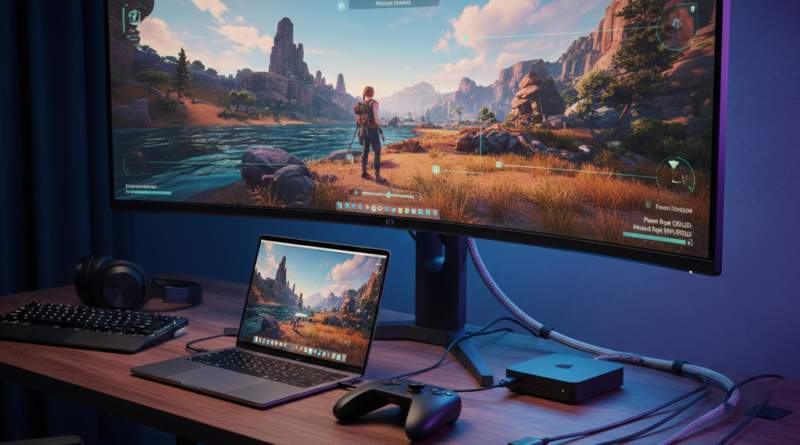
What to Look for When Buying an External Monitor for Your MacBook or Mac Mini
MacBooks have become immensely popular for desktop setups lately. The “clamshell” mode, where the MacBook is permanently docked to a monitor sitting on a desk, connected to an external keyboard and mouse, has become the go-to work setup for many users. The case is strengthened by hyper-inflation of PC desktop parts, that have made MacBooks and Mac Mini the go-to choice for users.
Buying a monitor for a MacBook is not the same as buying one for a Windows PC. On paper, the specifications look identical: 4K, 144Hz, HDR, USB-C, Thunderbolt. In practice, macOS handles scaling, resolution, and refresh rates differently, and those differences determine whether your setup feels sharp and natural or slightly off every single day.
The biggest mistake people make is assuming that any high-resolution monitor will look “Retina-like” on a Mac. That assumption usually leads to confusion once the display is connected. I fell for the same trap when I first bought a 27-inch 4K monitor, the BenQ PD2706U to use with my MacBook Pro M1. It’s a great monitor to use for the MacBook and Mac Mini, it has features like Thunderbolt 4 supports, KVM switch, native support for MacBooks, but the size and resolution don’t work that well with MacBooks.
That is why, before buying a monitor for using with your Mac, do your proper research.
The real starting point is scaling. Here is where 99% of Mac monitor hunters make their first mistake.
Understand macOS Scaling Before You Buy
macOS is optimized around specific pixel densities. Apple’s built-in displays typically sit around 220 pixels per inch, which allows clean 2x scaling. The system renders the interface at a higher internal resolution and downsamples precisely, resulting in crisp text and balanced UI elements.
Most third-party monitors do not match this density.
A 27-inch 4K monitor, for example, sits around 163 PPI. On Windows, that’s perfectly fine. On macOS, it forces fractional scaling when you choose “looks like 1440p.” Fractional scaling increases GPU workload and can slightly soften text rendering. It is usable, but it is not identical to a native Retina panel.
If clarity is your top priority and you want something that feels closest to a built-in MacBook display, the most natural options are 27-inch 5K displays and 32-inch 6K-class displays. These align much better with macOS scaling behaviour. Yes, they won’t come cheap, but they feel correct. Do keep in mind that a monitor typically lasts north of five years, so making an investment in a proper one is worth every penny if you make good use of it.
A 27-inch 4K IPS monitor remains the sweet spot for value. Just understand the trade-off before buying. As a person using the same configuration, it’s not like I’m having a bad experience, it’s pretty good actually. It’s just, not at the level Apple intends your macOS experience to be.
Resolution Over Refresh Rate for Most Users
High refresh rates are popular, especially in gaming marketing, but for most MacBook users, resolution and panel quality matter more than 144Hz.
macOS animations are already fluid at 60Hz. If you primarily use your MacBook for productivity, writing, editing, coding, or design, the improvement from 60Hz to 144Hz is subtle compared to the difference between 1440p and 4K clarity.
If you own a ProMotion MacBook and enjoy smoother scrolling, a 120Hz external display can make the desktop feel more responsive. But sacrificing resolution for refresh rate rarely makes sense on macOS. A sharp 4K 60Hz display is usually a better daily experience than a lower-resolution 165Hz gaming panel.
Also, when going for a high-refresh rate monitor, make sure it has proper USB C and/or Thunderbolt support. Monitors with these ports will be expensive, but if you’re looking full retina resolution along with 10-bit colour support, it’s a must to have these ports. If you’re solely relying on HDMI, you will first need a dock for your laptop to connect the HDMI cable, so be mindful of how you’re going to proceed.
Thunderbolt vs HDMI: Bandwidth Matters
Not all USB-C ports are equal. Many monitor brands stay very coy in the way they mention their USB C specifications. So it is always advisable to read the fine print and do your research properly.
Thunderbolt-enabled monitors can carry full display signal, deliver power to your MacBook, act as a USB hub, and handle higher bandwidth resolutions more reliably. If you want a single-cable setup where your MacBook charges while connected to the monitor, Thunderbolt is the cleanest solution.
HDMI works, but it usually means a separate power adapter and fewer integrated features. For resolutions like 5K at 60Hz, Thunderbolt bandwidth is effectively required. Many HDMI 2.0 ports simply cannot support higher resolutions at full fidelity. You’re likely to miss out on 10-bit colour and HDR when using an HDMI cable, or a lower-spec USB C port.
When evaluating a monitor, always check the exact version of HDMI and whether Thunderbolt is included. Port limitations are one of the most common sources of frustration in Mac setups.
Panel Type and Color Consistency
MacBook displays are known for strong color accuracy out of the box. Pairing them with a low-quality external panel creates a visible mismatch that becomes irritating over time.
IPS panels remain the safest choice. They provide consistent color and wide viewing angles. If you work in photography or video, look for monitors that support wide colour gamuts such as DCI-P3 rather than just sRGB.
HDR support on mid-range monitors is often more marketing than meaningful improvement. Unless the display has sufficient brightness and proper local dimming, HDR labels do not translate into dramatic real-world gains. Focus on accurate color reproduction and brightness uniformity first.
OLED monitors in general work really well with MacBooks and Mac Minis. The MSI QD-OLED 321UP is a great option for an external Mac monitor. Since OLED is the latest display technology which uses 10-bit colour and HDR by default, you will get properly specced USB C, Thunderbolt and HDMI 2.1 ports. OLED monitors are not that great for text though, so do pick accordingly.
Gaming Considerations on macOS
If you plan to game on your MacBook with an external display, refresh rate becomes more relevant, but expectations should remain realistic.
Native Metal titles such as Dota 2 scale well on Apple Silicon and can benefit from higher refresh panels on more powerful chips. However, many games running through Rosetta 2 or GPTK will not sustain high frame rates consistently. If your Mac cannot hold stable performance above 100 FPS in your preferred games, a 144Hz panel offers limited advantage. In most cases, a high-quality 4K 60Hz or 120Hz display provides a more balanced pairing with Apple Silicon.
Clarity tends to matter more than peak refresh rate.
KVM Switches: Essential for Multi-Device Setups
If you use both a MacBook and a Windows desktop, or even a second laptop, a built-in KVM switch can dramatically simplify your desk setup.
A KVM switch allows you to connect multiple computers to the same monitor, keyboard, and mouse, then switch between them without physically reconnecting cables. Some modern monitors include integrated KVM functionality that works over USB-C or Thunderbolt, automatically routing USB peripherals to the active device.
For users who, work on macOS during the day, game on a PC at night, or switch between work and personal machines, a KVM-enabled monitor reduces cable clutter and friction. My BenQ PD2706U supports KVM and it’s helped me maintain a clutter free setup where I don’t need to keep switching my input cables when I change my system. Personally, I could not do without this feature. This has genuinely made computing for me much simpler, faster and easier.
Without a KVM, you may end up constantly unplugging USB hubs or juggling input devices. That becomes tedious quickly.
When evaluating a monitor with KVM functionality, confirm that it:
- Supports switching via button or shortcut
- Properly handles USB peripherals
- Delivers sufficient power to your MacBook over USB-C or Thunderbolt
For hybrid Mac and PC setups, a good KVM implementation can be more valuable than a marginal bump in refresh rate.
Don’t Ignore Speakers
This has to be the most overlooked aspect when looking for a monitor for your Mac. When your MacBook is docked to an external monitor with an external keyboard and mouse, you will always prefer to have your MacBook lid closed. A closed lid means the sound through your MacBook’s speakers will get majorly muffled, almost useless. A lot of monitor brands are making monitors for Macs with this in mind, by offering in-built speakers. You don’t even need to connect any extra cable for audio, your USB C and even your HDMI ports support audio (in most cases). It is advisable to get a monitor with built-in speakers if you plan on using your MacBook in clamshell mode, of if you’re using a Mac Mini.
Common Mac Monitor Mistakes
Ultrawide 1440p monitors are frequently marketed as premium productivity displays, but at 34 inches and 3440×1440 resolution, pixel density drops significantly. Text can appear softer than expected, especially compared to your MacBook screen.
Another mistake is assuming all scaling modes perform equally. Fractional scaling increases GPU workload. On lower-tier Apple Silicon machines, driving multiple high-resolution displays with fractional scaling can impact performance.
Finally, size and distance matter. A high-resolution panel placed too far from your seating position reduces the benefit of pixel density. Choose a monitor size appropriate for your desk depth.
A Simple Framework
If you want the cleanest text and UI experience possible, prioritise 5K or 6K-class displays.
If you want strong value without major compromises, choose a 27-inch 4K IPS monitor with Thunderbolt support.
If you want smoother scrolling and a slightly more fluid desktop feel, consider 120Hz with proper bandwidth support.
If you operate a dual-system setup, prioritise monitors with integrated KVM functionality.
Understanding how macOS renders and scales is more important than chasing headline specifications.
Final Thoughts
An external monitor should extend your MacBook, not fight it. Resolution, pixel density, port bandwidth, and scaling behavior all shape how the system feels in daily use. The right monitor makes your MacBook feel like a desktop-class workstation. The wrong one will constantly feel slightly misaligned.
Buying thoughtfully means understanding how macOS behaves, not just what the spec sheet advertises.
